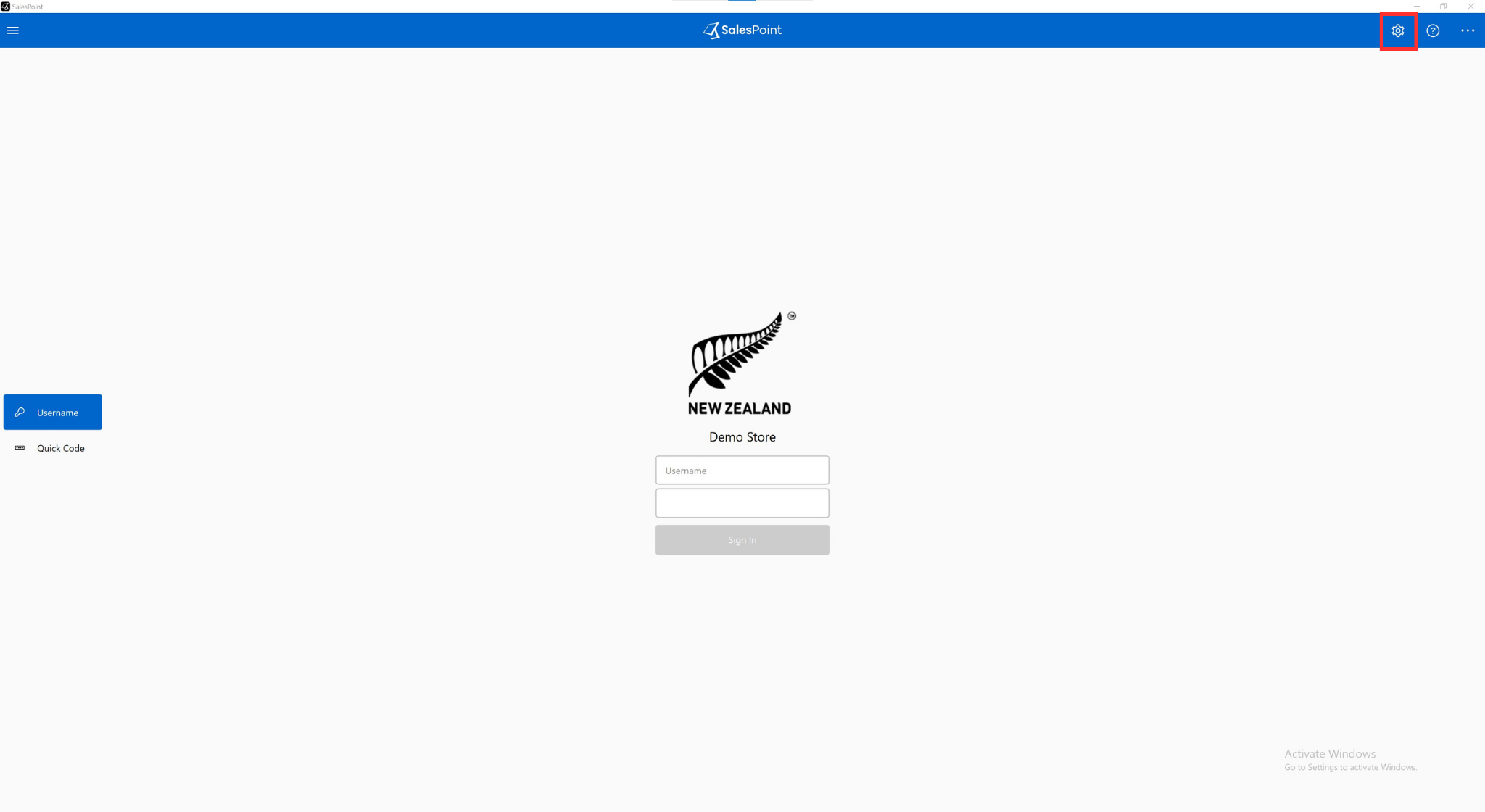
Press the "Settings" Icon from the Sign-In screen to access the register settings.
Note: Sign out from your store if you are signed in.
General
Store
The current store the register is located.
Role
What Role the windows is playing. eg. Server, Client or Stand-Alone
EFTPOS
EFTPOS
The type of integrated EFTPOS (if any)
Note: Depending on the type of integrated EFTPOS selected there may be more options available. Please contact your provider for the value used for these settings.
Open Cash Drawer On Payment
Open the register whenever a customer pays.
Printing
Print Receipt
Determines how you would like to print a receipt
Receipt Printer
None - no printer
Network ESC/POS - a network-connected ESC/POS capable printer (IP address and port required)
USB ESC/POS - a USB-connected ESC/POS capable printer (USB permissions required)
Bluetooth ESC/POS - a Bluetooth connected ESC/POS capable printer (USB permissions required)
On Device - The receipt printer built-in on Android will be used.
Kitchen Printer(s)
An option for hospitality if a store has a different printer for kitchen food orders.
Peripherals
Barcode Scanner
If a barcode scanner is connected to the Windows device, it will be able to scan and read barcodes.
Advanced
Full Screen
Activate the full-screen mode for the app.
Touch Screen Keyboard
This feature is particularly helpful for devices without a physical keyboard. It generates an on-screen keyboard when you use the app.
Show the "Sale Completed" Dialog
A pop-up dialogue will appear to show that a sale was completed. An option for printing or emailing the receipt will get asked with it.
Show the "Kitchen Print" Dialog
A pop-up dialogue will ask if a product needs to be printed as a kitchen order.
Product Button Images
Allow image on a product button
Enable Customer Display
Allows a display screen for customers to see what they are ordering.
Currency Input
Currency input allows a user to enter a monetary value that will be auto-formatted to match the currency. When this is enabled putting $1 becomes $0.01